
Part One - Installing the basic Cygwin system
- Make the following directory on your computer:
C:\Cygwin\Setup
- Download this file (http://www.cygwin.com/setup.exe), and save it as C:\Cygwin\Setup\setup.exe
- Make a shortcut on your desktop to point at the Cygwin Setup program, C:\Cygwin\Setup\setup.exe
- Run Cygwin Setup (C:\Cygwin\Setup\setup.exe)
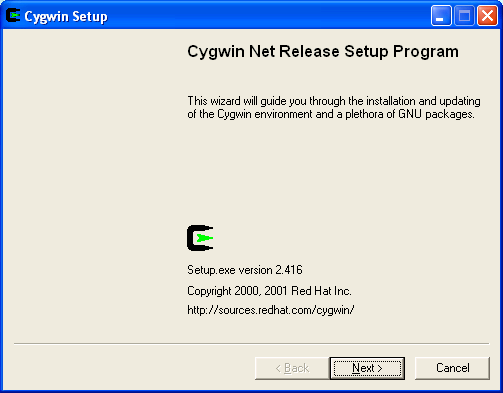
- Accept all the other default settings by clicking on "Next", but make sure it installs in C:\Cygwin
At one stage ("Choose Download Site(s)") it will ask you which source to use, choose a computer in Europe as it should be quicker.
- Run the new "Cygwin" icon that will be added to your desktop and start menu.
After a small wait, this should bring up a black window with some text in it. Try typing some basic Unix commands to confirm it is working.
e.g. Typing "ls -l -a" and enter should list a few files.
The "ls" Unix command is short for list, and shows you the files in the current directory. The -a means show all files (even the hidden ones) and the -l means long format (shows extra details like file size). In Windows/DOS the equivalent is "dir".
- (This doesn't seem to be relevant anymore, nowadays cygwin defaults to using your Windows home directory) Using windows explorer, find this directory (where username = your windows user name):
C:\Cygwin\Home\username
This is your "home" directory in "Unix land", I suggest you make a shortcut to this folder on the desktop.
- The installation does not seem to setup the Path environment variable, so we have to do this by hand.
- On your windows desktop, right click on "My Computer" and select "Properties".
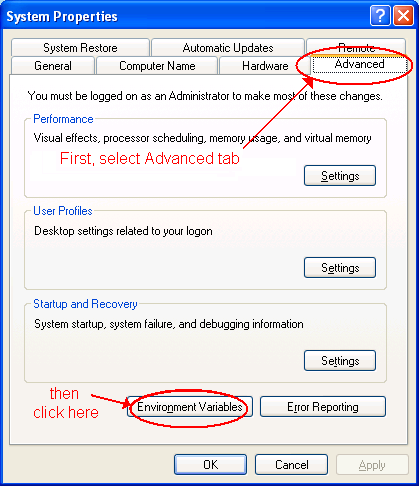
- Then click on the "Advanced" tab. This should have a button at the bottom left called "Environment Variables", click on this.
- This should bring up another window. In the bottom half of the screen (System variables), select the line called Path, and click "Edit"
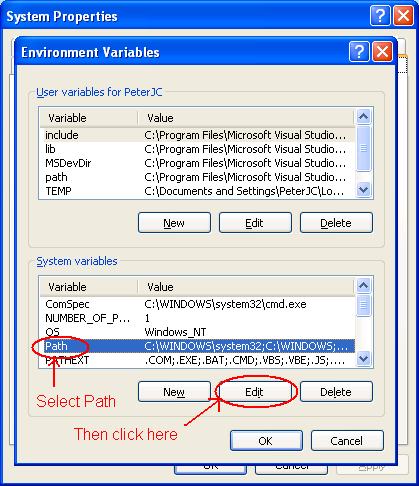
- This should bring up another little window where you can edit the current text
- Go to the end of the line and add this: ;C:\Cygwin\bin;C:\Cygwin\usr\bin
- Click OK to save this change
- Click OK to close the Environment window
- Click OK to close the System properties
Next up, Part Two - Installing GCC.