
Part Four - Installing the X Windows System on Cygwin
So far we have only installed and used simple "Text Only" unix programs. X Windows is the graphical system used on most Unix and Linux computers. By installing this for Cygwin, it allows us to run lots of graphical unix programs.
In particular, there are fancy editors like nedit and emacs (note emacs does have a text only version that is very hard to use as well) which can do colour coding of programming files.
In particular, we will need to use the graph plotting program gnuplot (see Part Five).
This has not received proper testing yet...
UPDATE: Since this was written, the XFree86 group decided to change their license terms, and this had the knock on effect of a rival group being setup, X.org, whose software is now used by most Linux distributions (and Cygwin) instead. On my computers, Cygwin handled the transistion very smoothly, so I would expect there to be no big differences needed to these instructions. But take care.
- Close Cygwin if it is running.
- Run Cygwin Setup.
- Click on "Next" until you reach the "Select Packages" screen.
- Find the "XFree86" (UPDATE: "X11" entry) (X Windows) entry (about second from last), and click on the text "Default" which should change to say "install"
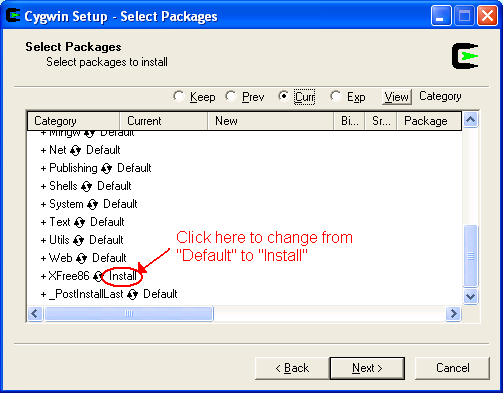
- Click on the next button, and let Cygwin download and install the X Windows system.
- This will take a while, have a cup of tea.
- Make a new shortcut on your desktop to this batch file:
C:\cygwin\usr\X11R6\bin\startxwin.bat
I suggest you call this shortcut "Start X Win" rather than "Shortcut to startxwin.bat"
- Run your new shortcut (which will run C:\cygwin\usr\X11R6\bin\startxwin.bat)
- After a short wait, a black window should appear briefly and then disappear.
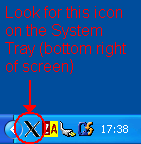
- A new icon should appear on the windows system tray (the right had side of the task bar, by the clock):
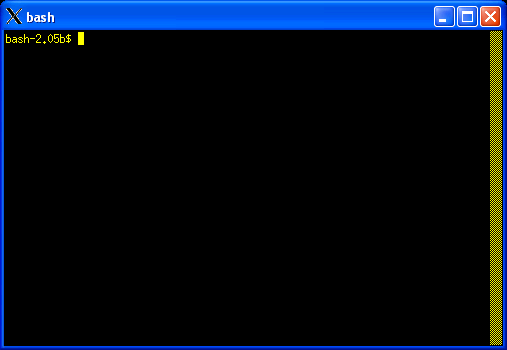
- Also, a new black and yellow "bash" window should appear:
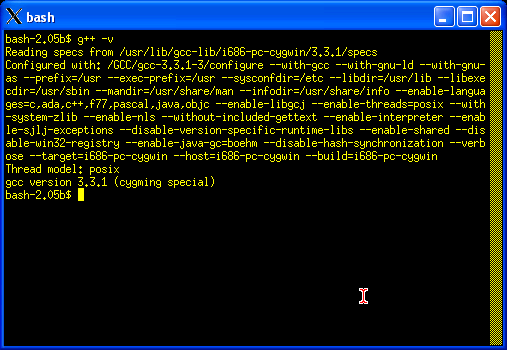
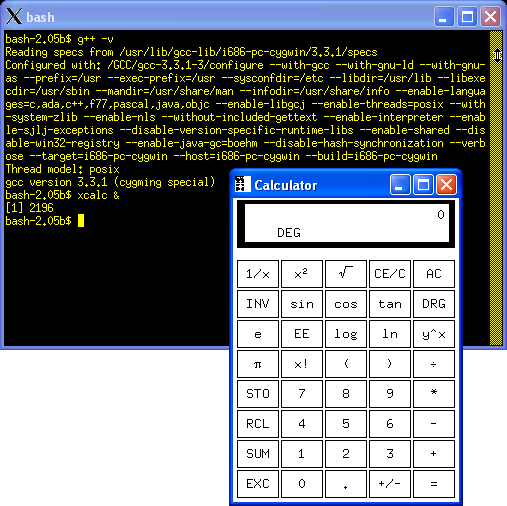
- To check things are working properly, try typing the following command:
g++ -v
- This should report the GCC C++ compiler version (G++) as seen before:
- Also try typing the following command:
xcalc &
- This should launch the "X Windows Calculator":
- Close the calculator
- Close the bash window
- So far so good, but the default installation does make some odd choices (e.g. no clipboard sharing with Windows, not starting in home directory). To rectify these download this copy of startxwin.bat and save it on top of the old one:
C:\cygwin\usr\X11R6\bin\startxwin.bat
- Run your "Start X Win" shortcut again (which will run the updated C:\cygwin\usr\X11R6\bin\startxwin.bat)
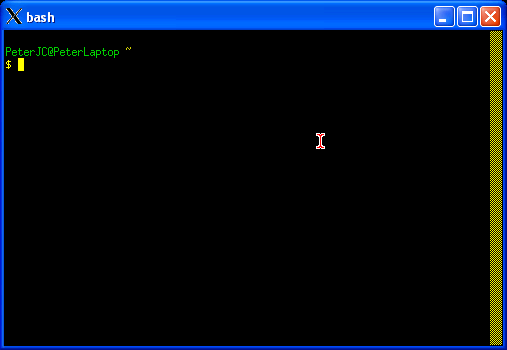
- This time your command prompt should look like this (which should be very similar to the non graphical one we used before, to try and make you feel at home!):
- As in Part One, there are some Environment settings that seem to need setting. We need to update the Path variable and create a DISPLAY variable as follows:
- On your windows desktop, right click on "My Computer" and select "Properties".
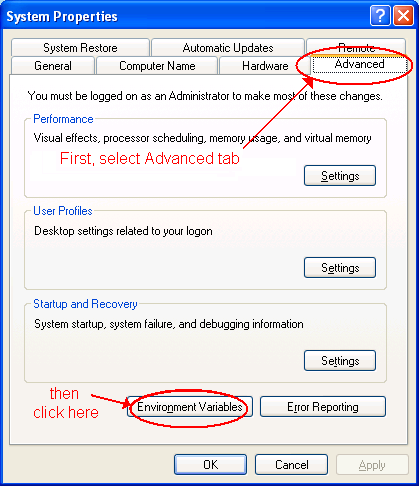
- Then click on the "Advanced" tab. This should have a button at the bottom left called "Environment Variables", click on this.
- This should bring up another window. In the bottom half of the screen (System variables), select the line called Path, and click "Edit"
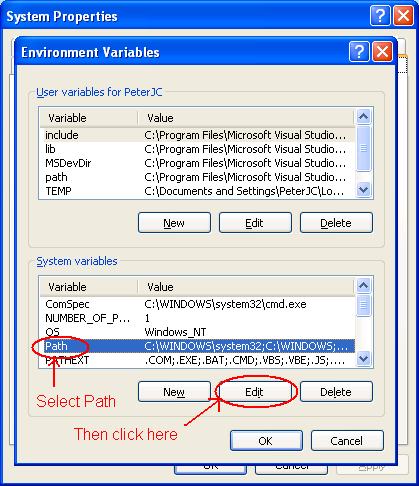
- This should bring up another little window where you can edit the current text.
- Go to the end of the line, should should already have added this in part one: ;C:\Cygwin\bin;C:\Cygwin\usr\bin
- Now add this to the end: ;c:\cygwin\usr\X11R6\bin
- Click OK to save this change
- You should now be back at the "Environment window"
- Create a new System Variable by clicking on the new button:
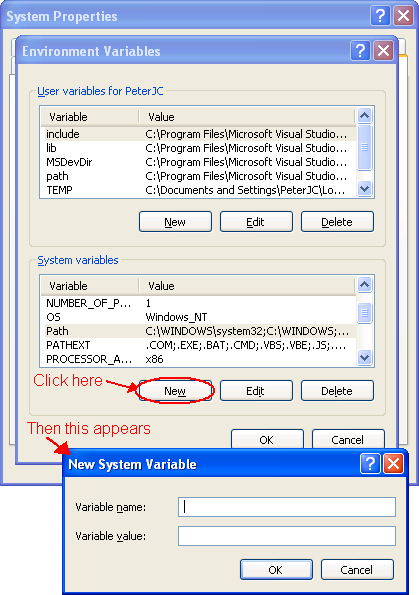
- Type in variable name of DISPLAY
- Type in variable value of 127.0.0.1:0.0
- Click OK to create this environment variable
- Click OK to close the Environment window
- Click OK to close the System properties
- Note that you should have some nice new Start Menu programs entries:
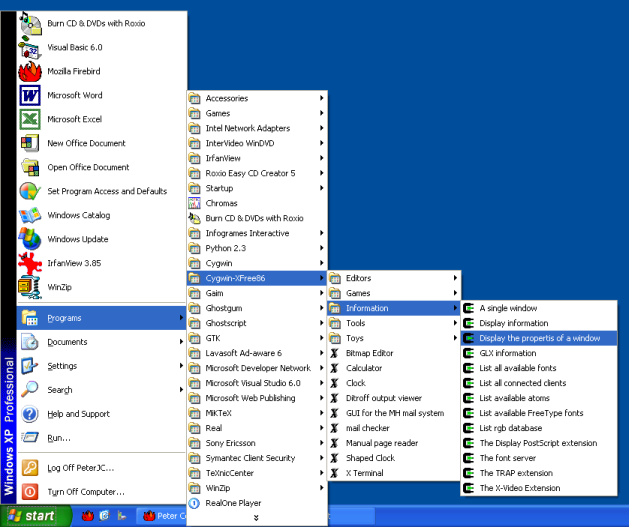
- If you don't, download this ZIP file and extract it here:
C:\Documents and Settings\All Users\Start Menu\Programs
Next up, Part Five - Installing gnuplot.