WBS Solutions provides technology and systems support and development for all students and staff at WBS.

WBSWBS Solutions

iPads @ Warwick Business School
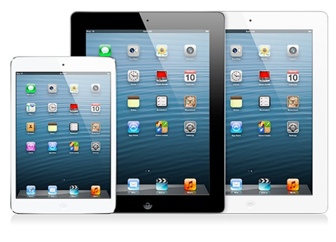
ipads.jpgThis information is primarily aimed at WBS staff who have, or are considering, purchasing an Apple iPad using WBS funds. It may also be of some relevance to students.


How To order an iPad using wbs discretionary funds or similar

1. Decide on the configuration you require

The latest iPad costs between GBP399 and GBP659 depending on the options selected.

When buying an iPad the you have four important decisions to make as shown below. You can see the pricing effect of the various options by visiting the Apple store. Note that Apple consider the iPad a consumer device and so there is no educational discount. If you need any further advice about the options please contact dene dot statham at wbs dot ac dot uk

  • Wi-fi only or Wi-fi & 3G?
    It costs GBP100 more to have an iPad with 3G access as opposed to Wi-fi only. If you choose wi-fi only then the iPad will work fine when within range of a wireless hotspot. Outside of this however you will have no way of connecting to the Internet. With the 3G option you have the ability to connect to the cellular phone network to get data access but you still need some kind of data contract. For the University this must be with Vodafone and costs GBP12.75 plus VAT per month for 3GB of data or GBP18.00 plus VAT for 5GB of data. If you select the wi-fi only version it is not possible to upgrade later. If you not sure you can select the 3G version now but not sign up for a contract. That way you can decide later if you wish to have 3G data as well.
  • Storage size: 16GB, 32GB or 64GB?
    You must decide when purchasing how much space you will need on your iPad. There is no way of adding additional storage to an iPad (e.g. no USB ports or similar). The best way of estimating the storage you require may be to look at the files you currently have. Unless you have lots of videos and photographs 16GB is probably sufficient. Each jump in size costs GBP80.
  • What colour iPad would you like?
    You have the choice of Black or White.
  • Do you want to purchase a cover and (the big question) what colour should it be?
    It is probably a good idea to buy some sort of cover. The official Apple Smartcovers offer some benefits such as automatically turning the device on and off when they are opened. For more details and to view the colours available see http://www.apple.com/uk/ipad/smart-cover/ . Smartcovers cost GBP35 for Polyurethane and GBP59 for leather.

2. If you are wishing to purchase a wifi-only iPad (or 3G without a contract) contact dene dot statham at wbs dot ac dot uk with the details of the specification you require. If you wish to purchase an iPad with a 3G Vodafone contract complete this form (Excel Spreadsheet) and send to WBS Finance.

3. Wait to hear from WBS Solutions that your iPad has arrived.


Frequently asked questions


How do I start using my new iPad?

  • Install iTunes on your computer (if you are using Windows 7 you should see this in the 'Run Advertised Programs' list - see shortcut on your desktop. If you cannot see this please help at wbs dot ac dot uk.
  • Connect your iPad to your computer using the provided cable and follow the wizard.


Setup find my iPad / iPhone

  • Sign up right now for the free 'Find my iPad' service. This will help you if your device is lost by allowing you to locate it on a map, remotely set a lock code, send a message to its screen as well as playing a sound. If the worst happens this service will still let you remotely wipe all the data from the device. Instructions on how to set this up are at http://support.apple.com/kb/PH1306 . See below for more about the 'Find my iPhone' service.


How can I synchronise my WBS staff email and calendar?

For WBS-provided iPads please follow the instructions at: http://help.wbs.ac.uk/kb/email/staff/activesync/iphone/ . Staff with private iPads will need to contact the Helpdesk to request that their account be enabled for synchronisation.


How can I synchronise my wbs student email and calendar?

For the answer to this question and more about the student mail.wbs service see http://help.wbs.ac.uk/studentemail .


Our favourite apps

One of the best things about an iPad is that you can install apps to provide extra functionality. Usually these are free or very cheap. This is a list of some of our favourites. If you have any other tips please leave them in the comments section below:

Please note, these are own personal favourite apps after spending our own money. This information is provided to assist you in getting the most out of your iPad. People work in different ways however and what is good for us may not be for you. Use at your own risk.

  App name Details
Dropbox Dropbox

Dropbox is a cloud-based service that allows you to synchronise your files between different devices. It is the easiest way to get files on and off your iPad. If you haven't already tried it then sign up at www.dropbox.com. They have a free account (up to 2GB) storage as well as paid options. Most people seem fine with the free version although once you start using it you are likely to be hooked.

It does mean your files will be on multiple computers (e.g. your home desktop, laptop, iPad etc) so think about what kinds of files you will put in your Dropbox. It probably isn't appropriate for sensitive files (e.g. student data). If a device is stolen there is no way built in to Dropbox to allow you to wipe the files from the lost machine.

Goodreader Goodreader

GoodReader® is a super-robust PDF reader for iPad and iPhone. Its iPad version was the #1 selling non-Apple app for iPad in 2010 in USA! With GoodReader on your iPad/iPhone, you can read virtually anything, anywhere: books, movies, maps, pictures.

Integrates easily with Dropbox. If you are serious about going 'paperless' to meetings then Goodreader is a must.

 Evernote  Evernote This is the iPad version of the popular Evernote app. It claims to be an add-on to your brain. It is an easy way of capturing and storing information such as your notes, photos, screenshots. This information can be easily tagged to ease retrieval. It will even read the text in your photos, for example allowing you to upload a photo of someone's business card and have it be searchable. Free for a limited account with a paid version offering a little more functionality.
 Maxivista  Maxivista

Maxivista turns your iPad into an extra screen when used with a home wireless connection. I haven't managed to get it to work with the university network although it may be possible. Of course if you don't have wireless at home then it won't work for you. Reviews for this are not universally good (indeed almost universally bad) but for me it works great. Having two screens at work I have always found it really difficult to work on my laptop's single screen. Now with this app I don't have to. As apps go it is a little expensive at £5.99. Click here to watch a video of its use but do read those reviews before spending your money!

There's an alternative for both Macs and PC's although I haven't tried it: http://avatron.com/apps/air-display

Google Earth Google Earth

I can't come up with a business case for needing this app but it's free and an essential who anyone who has ever seen 'Minority Report'.

Page contact: WBS Helpdesk Last revised: Tue 17 Jan 2012
Back to top of page
 

Web site search

People search

News

News.