
Timetable Reports Help
The Timetable reports can be used to view your course lecture timetable and the timetable for other modules so that you can avoid clashes when choosing your options.
Once you have your personal lecture timetable for all your modules you should check the following:
- Check in case any of the options you have chosen clash. (The usual reason for modules appearing to clash is either that the modules are running in different weeks or that the option you have chosen does clash with another optional module or core module. Therefore please check the week numbers as modules may be running on different weeks). If they do clash, you should look for alternative options online and/or consult your department and rechoose via eMR. To see the alternative options online, you can see a full grid of all modules available under your Programme of Study (POS) by selecting the POS link, select your department and confirm selection, scroll down and select your POS code and select request POS report. (NB all seminar slots are shown on the POS grid, therefore don't worry if it appears that a seminar slot is clashing with a module you have chosen. You must, however, contact your department for your personal seminar allocations as they will ensure your seminar/s don't clash with your lectures - see point 2 below).
- Check with your department for your allocated seminar slots
"What do the numbers in the PLTT grids mean?"
The cells in the grids will look similar to this:
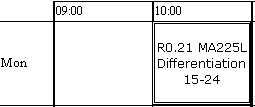
Key:
R0.21 is the room number - see room information for more details of the room/s ie which building they are located, audio visual equipment etc (use the link in the top left of this page)
MA225L is the module code with L suffix meaning Lecture (S=Seminar, P=Practical).
Differentiation is the module description.
15-24 are the weeks it is running in - see week conversion for weeks with date conversion.
"What do I do if my lectures clash?"
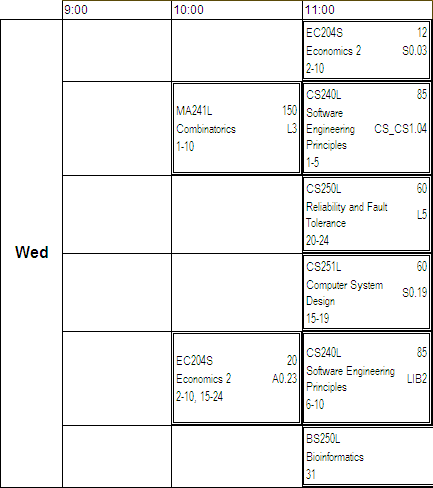
As explained in point 1 above, the usual reason for modules appearing to clash is either that the modules are running in different weeks or that the option you have chosen does clash with another optional module or core module and you need to rechoose your option. Therefore follow the instructions given in point 1 above. To see an example of a POS timetable (for 2nd year Computer Systems) see the screenshot below:
(CS240L and CS251L are core module lectures, however CS240L runs in weeks 1-10 in that time slot, while CS251L runs in weeks 15-19.
EC204S is a seminar run by the Economics department. Students taking this module as an option will be allocated a different seminar slot by the module leader).
If two of your chosen optional modules clash, please follow point1 above.
NB the suffix code after each module code are S (and Sm)=Seminars, L=Lecture and P=Practical.
"There is only one lecture slot showing - where are my other slots?"
The timetable will only show lecture slots for your modules so if the department hasn't timetabled any slots for this via the Central Timetable they can't show. Also it may be there are only seminar slots timetabled for your module so again these won't show on your PLTT. Also if you didn't press CONFIRM in eMR after choosing your modules your status will still be set to VISITED and needs to be set to CONFIRMED for your choices to come into the timetabling system. Go back to eMR and press CONFIRM, then check your PLTT the next working day for your choices to show.
"What if there isn't a day showing in the grid?"
If there are no timetabled lecture slots for a day, then the grid will not show a day at all.